The Hotel Module allows restaurants to manage hotel rooms, reservations, guests, and front desk operations from within the same system. This module is designed for restaurants or hospitality businesses that also provide accommodation services.
Front Desk Dashboard
The Front Desk Dashboard provides a quick overview of the hotel’s daily operations. It helps the front desk staff manage guest arrivals, departures, and room occupancy.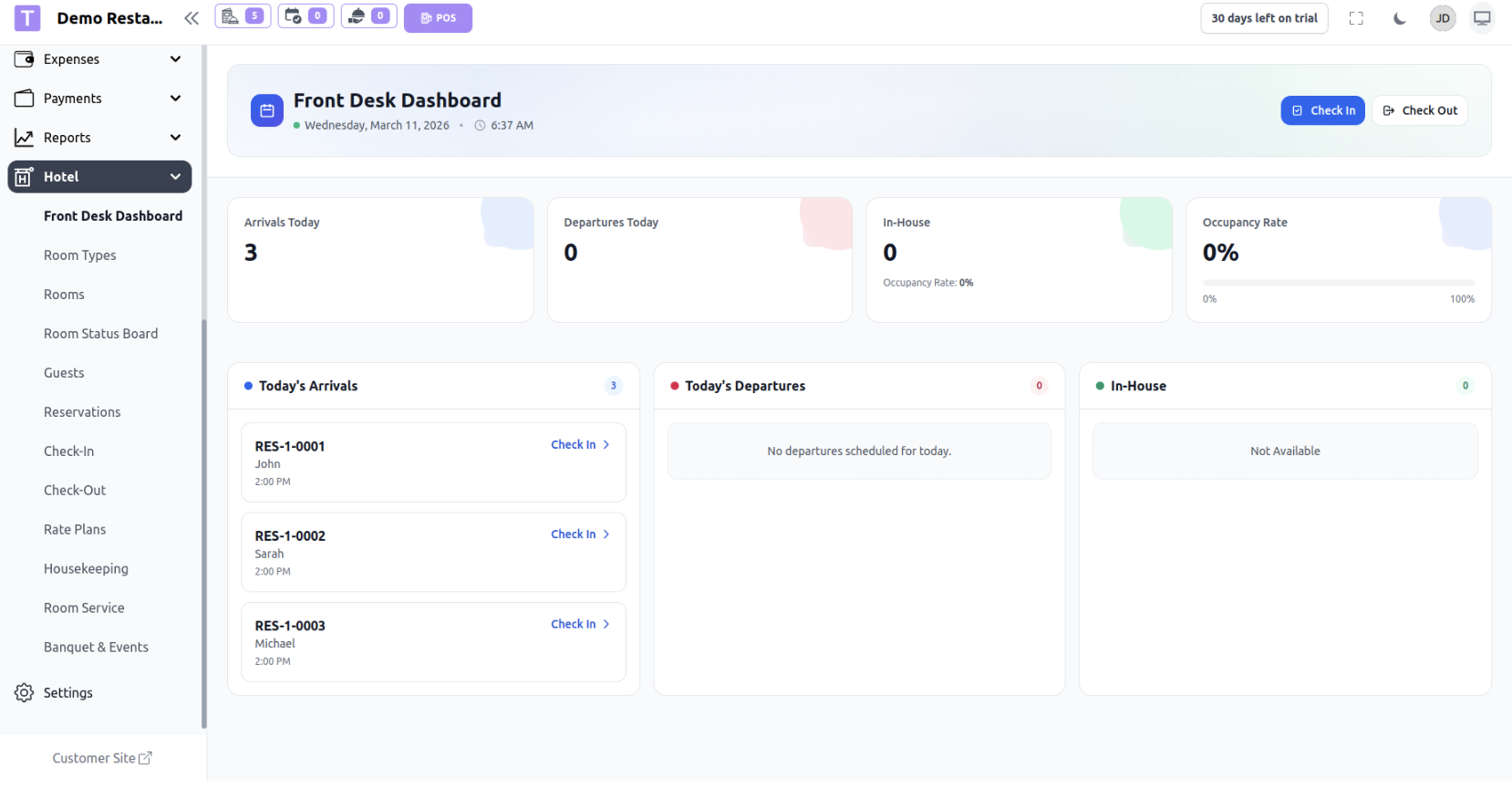
Room Types
The Room Types section allows administrators to create and manage different categories of hotel rooms. Each room type defines the room capacity and base price.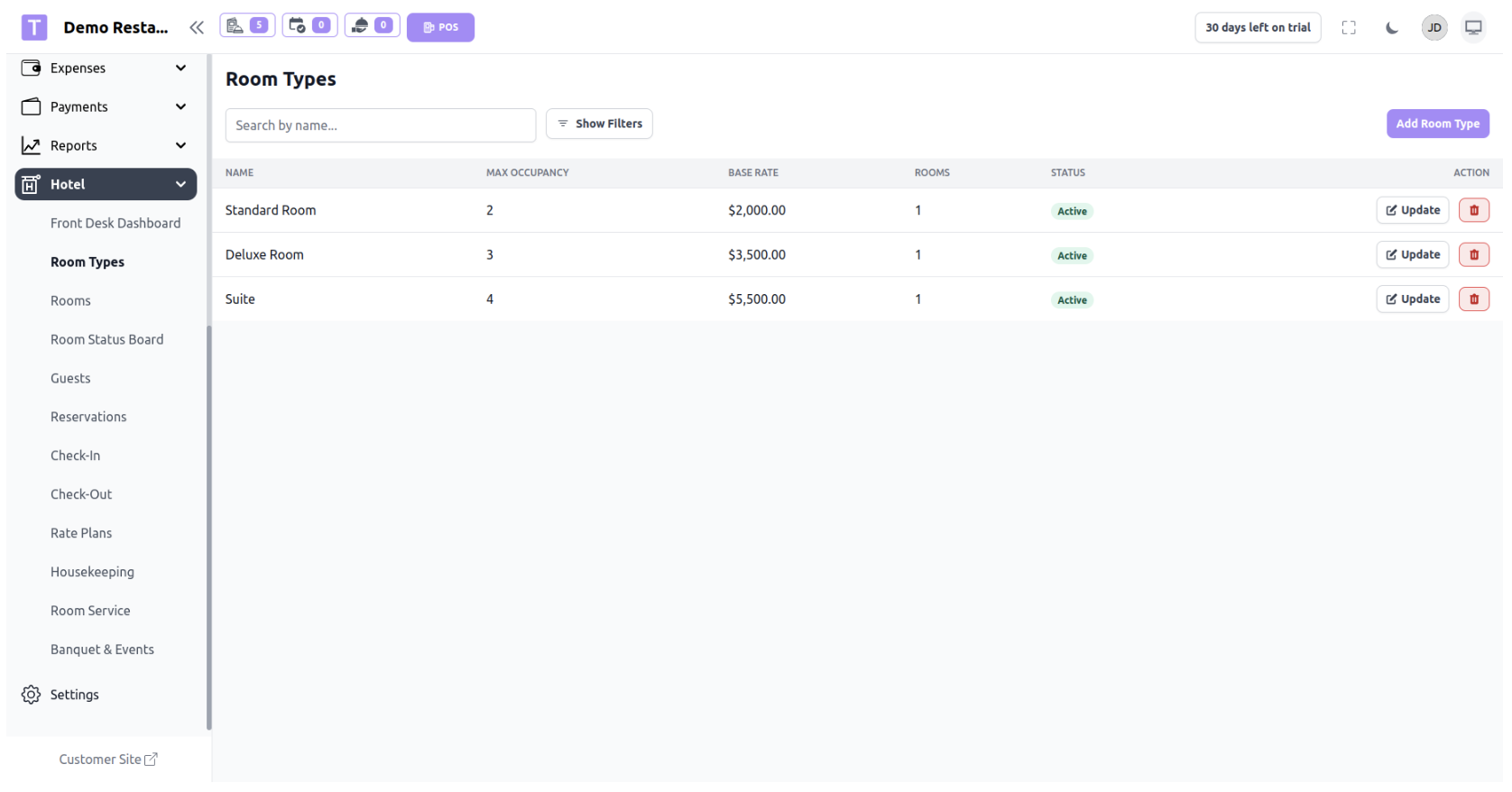
Rooms
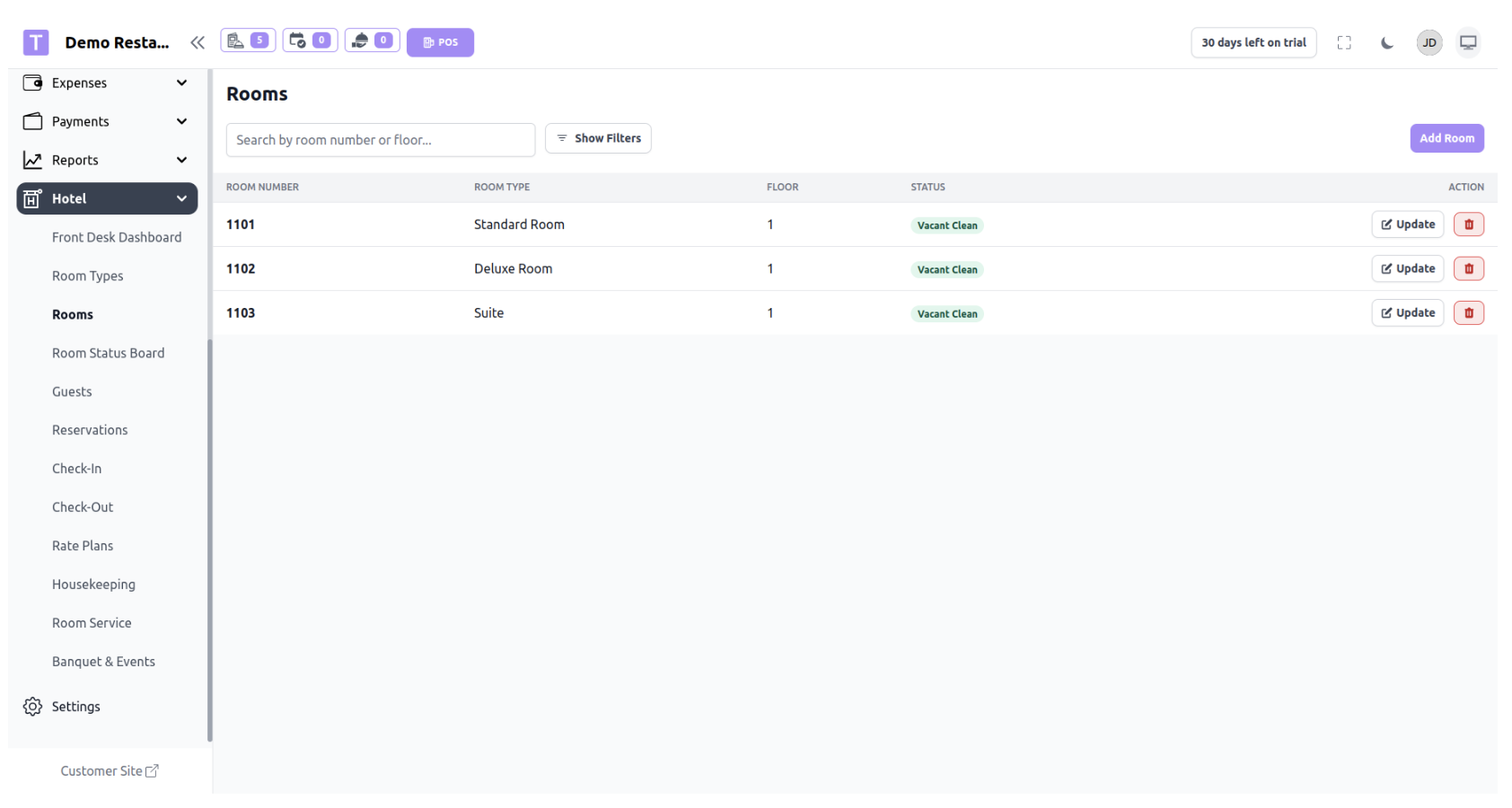
The Rooms section manages all individual hotel rooms.
Each room is assigned to a room type and floor.
Room Status Types :
- Common room statuses include:
- Vacant Clean
- Vacant Dirty
- Occupied
- Maintenance
- Reserved
Room Status Board
The Room Status Board provides a visual overview of all rooms and their
current status.
This screen helps staff quickly identify:
- Available rooms
- Occupied rooms
- Rooms needing cleaning
- Rooms under maintenance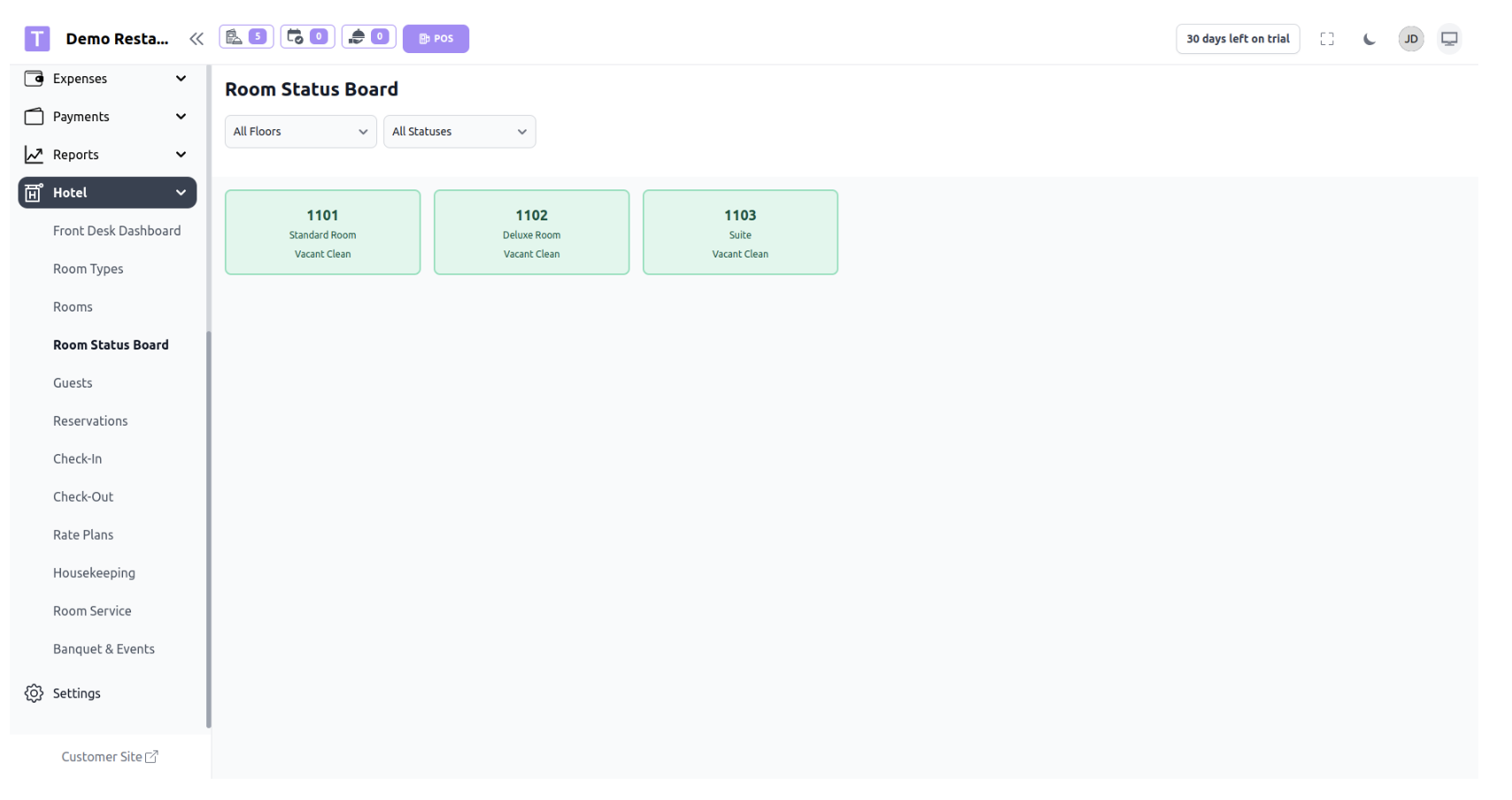
Guests
The Guests section stores and manages information about all hotel guests.
This allows staff to keep records for reservations, check-ins, and check-outs.
ID Types: Guests may provide different types of identification such as:
- National ID
- Driving License
- Passport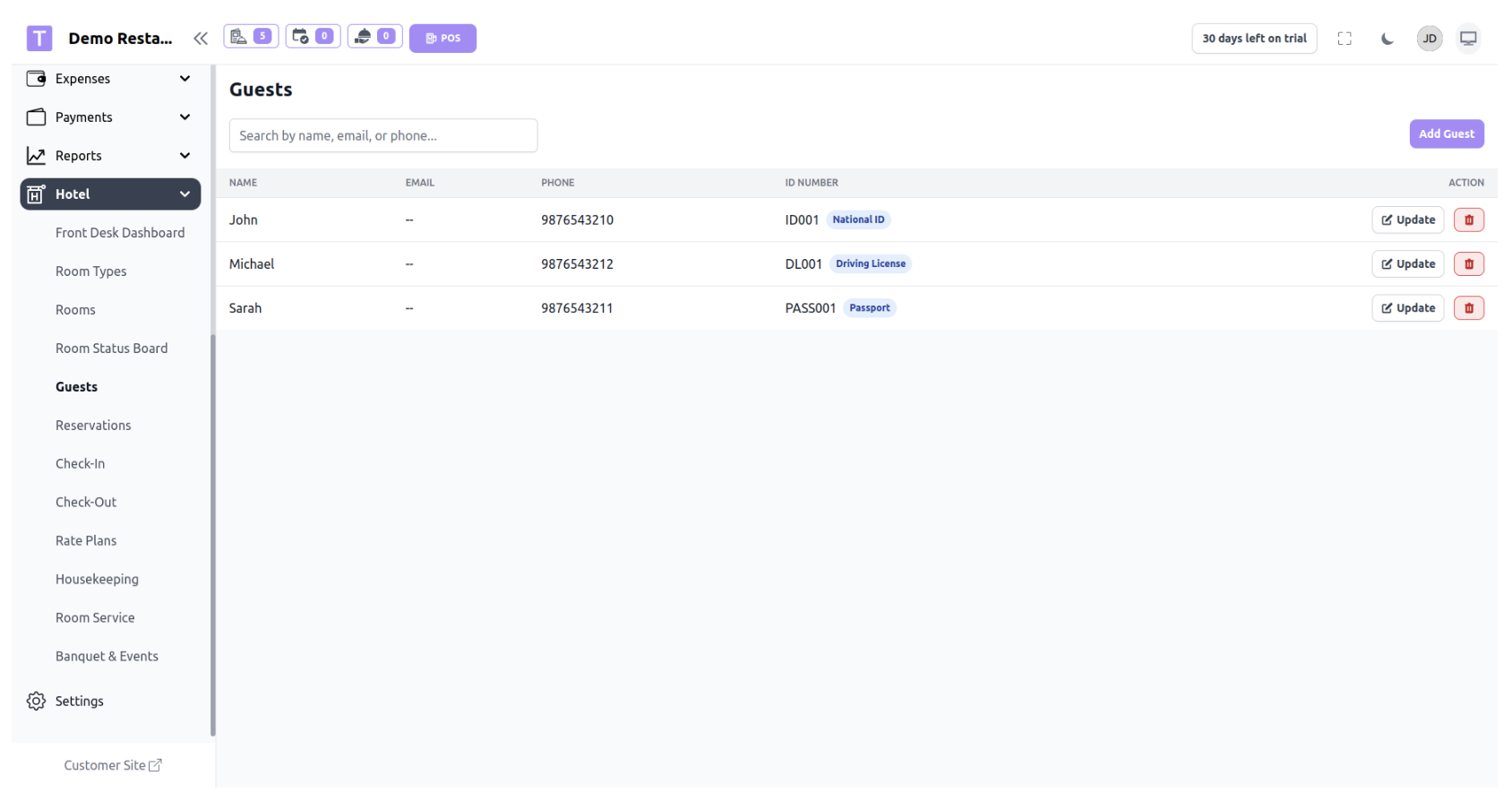
Reservation
The Reservation feature allows hotel staff to book a room for a guest in
advance before the guest arrives at the hotel.
Reservations help manage future bookings and ensure rooms are allocated
properly.
Reservation Process
1. Staff opens Reservations section.
2. Click Add Reservation.
3. Select or create a Guest.
4. Select Check-In Date and Check-Out Date.
5. Check room availability.
6. Assign an available room.
7. Save reservation.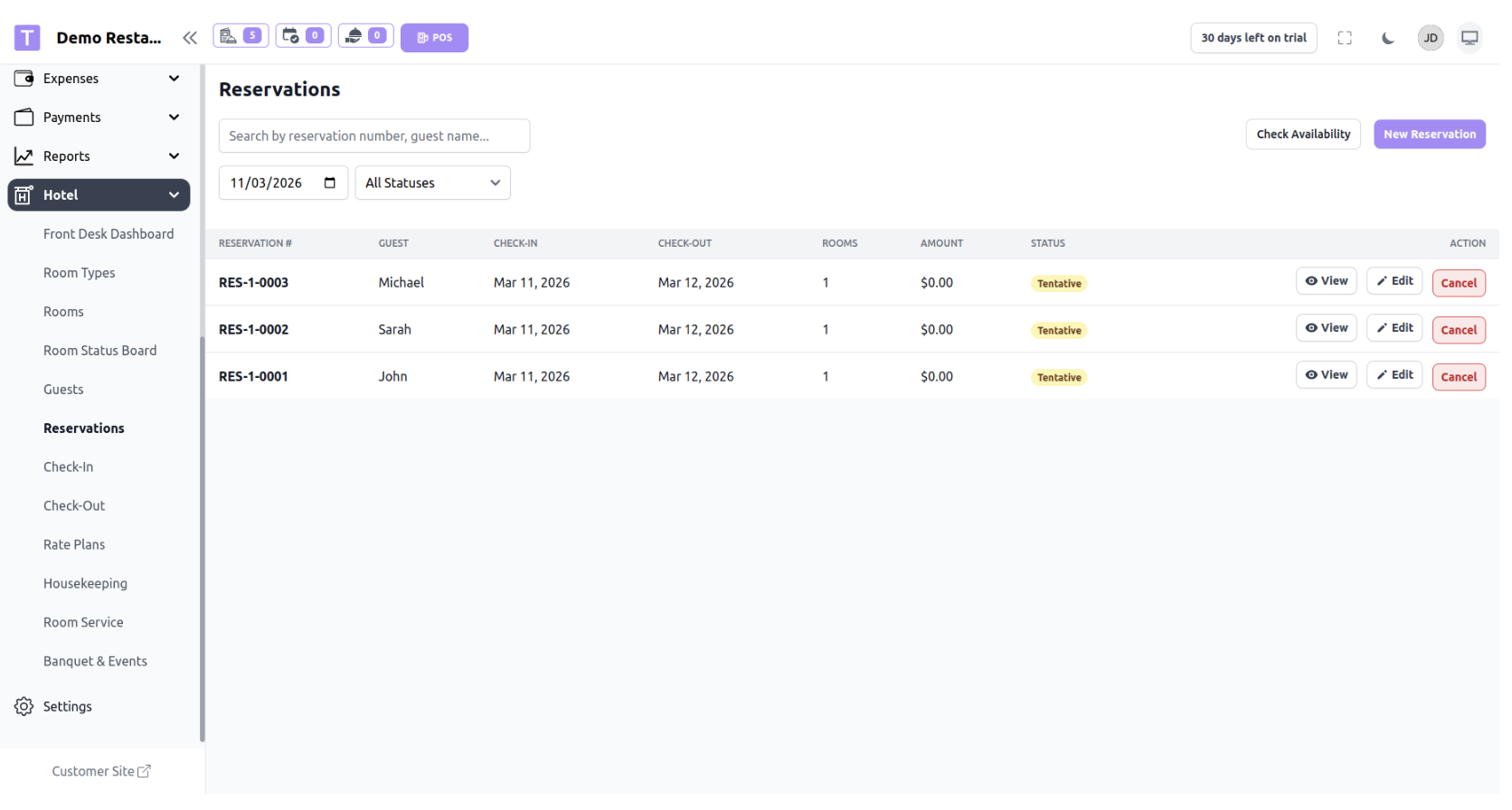
Check Room Availability
The Check Room Availability feature allows staff to see which rooms are
available during a specific date range.
This helps ensure that rooms are not double-booked.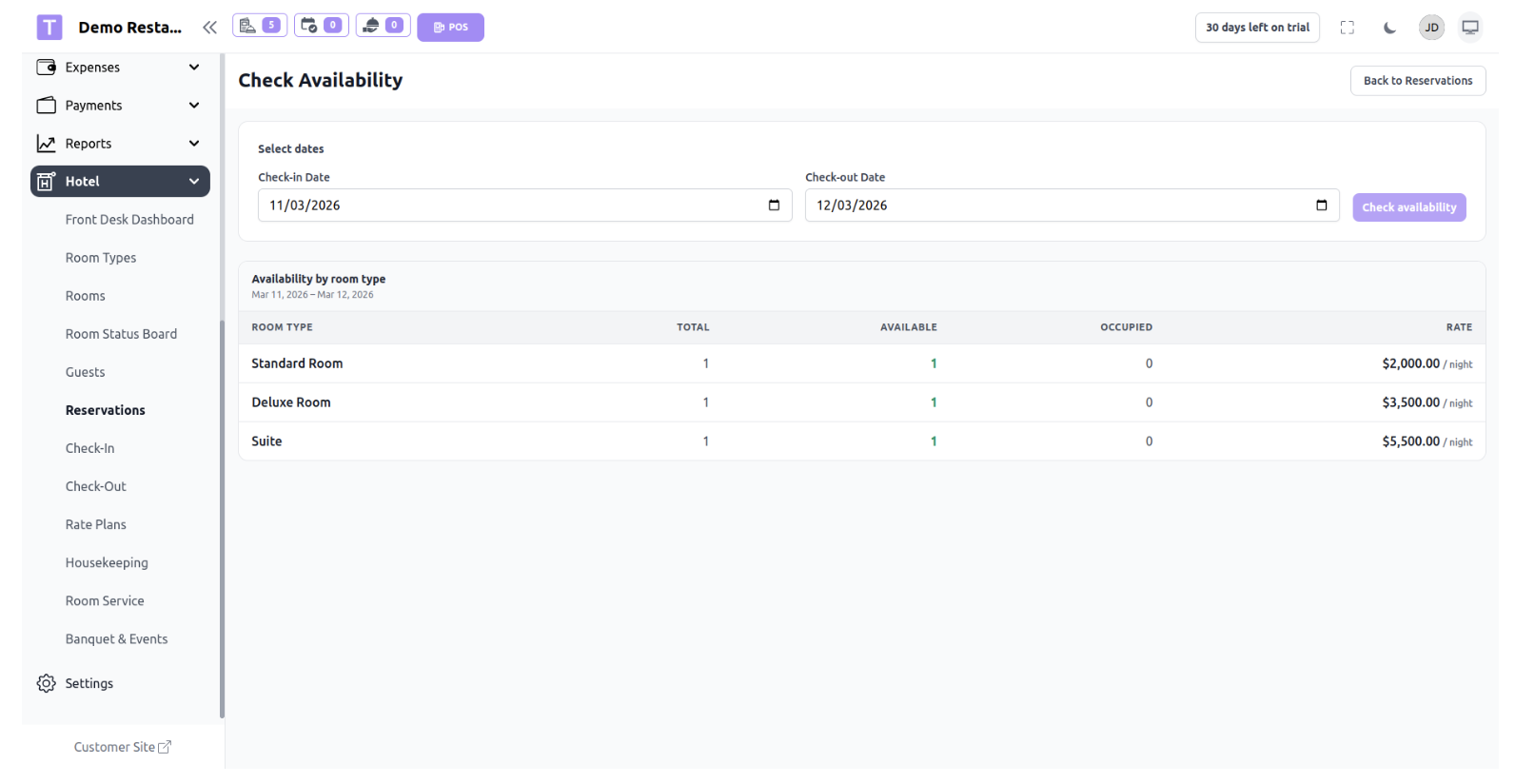
Check-In
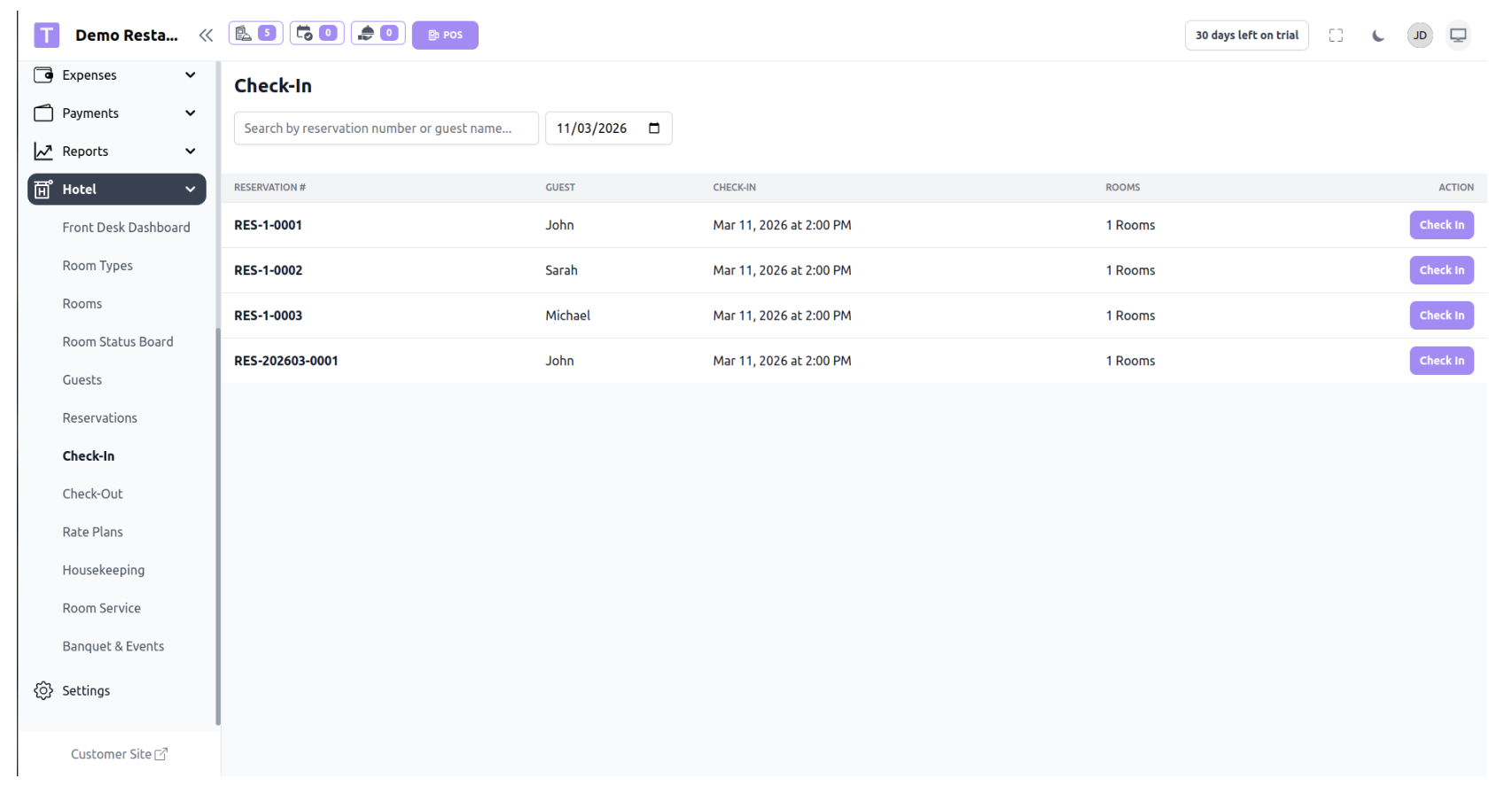
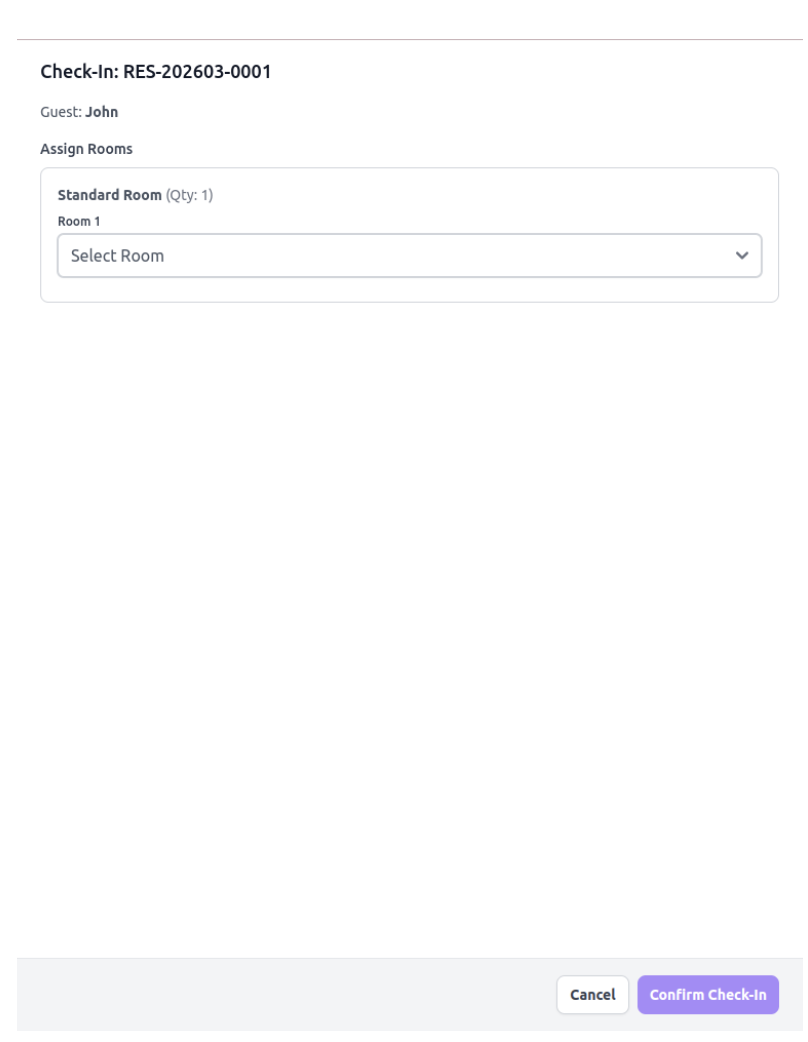
The Check-In feature is used when a guest arrives at the hotel.
During check-in, the reservation is confirmed and the guest officially
occupies the room.
Check-In Process
- Staff opens Check-In page.
- Selects the reservation or guest.
- Verifies guest details.
- Confirms the assigned room.
Completes check-in.
Check-Out
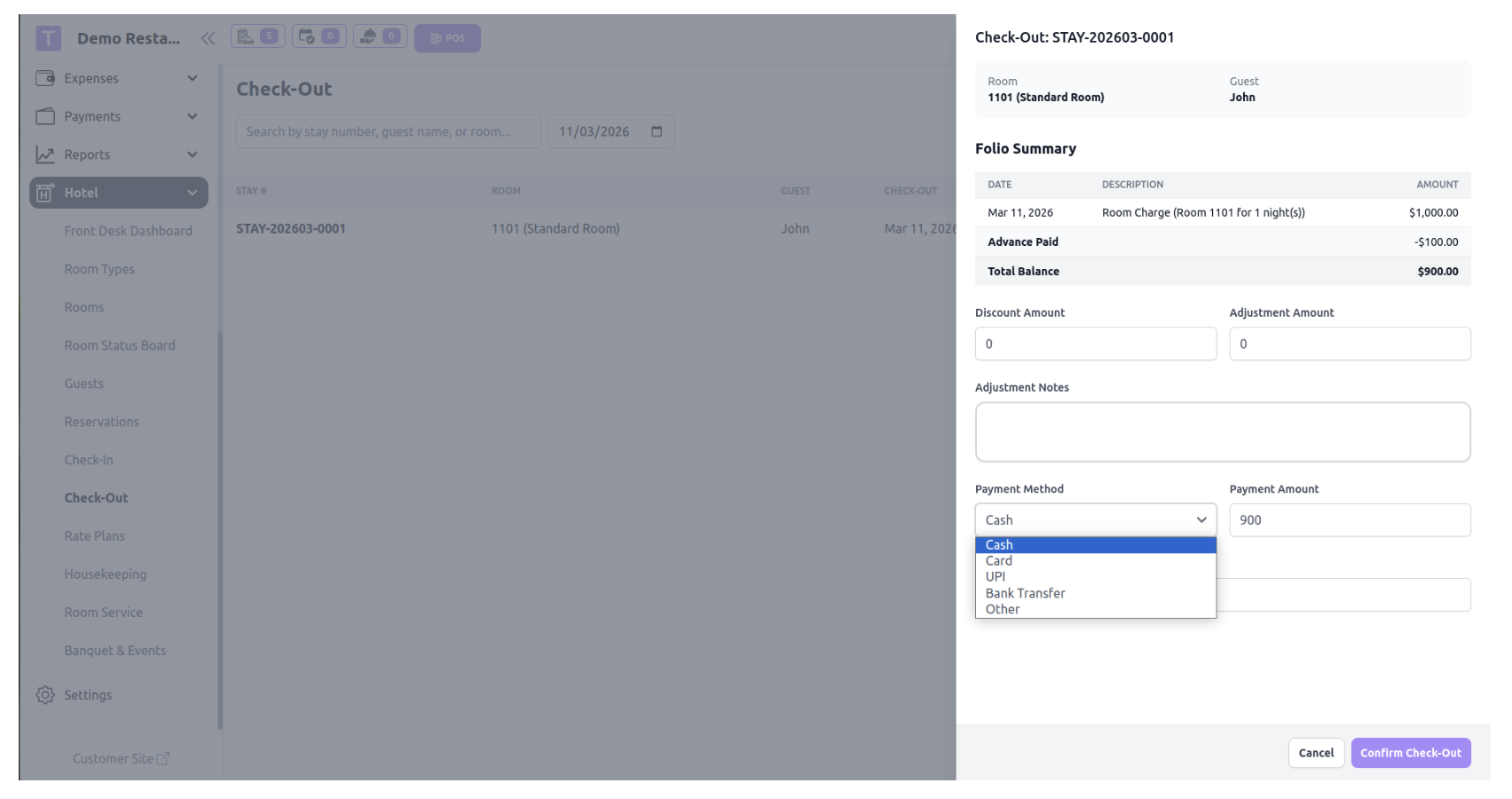
Check-Out is performed when a guest leaves the hotel. During this process, staff opens the Check-Out page, selects the guest or reservation, reviews the stay details, completes any pending payment, and confirms the check-out.
Once check-out is completed, the system automatically updates the room status to “Vacant Dirty” , indicating that the room requires cleaning.
At the same time, a housekeeping task is automatically generated for that room.
Housekeeping staff then clean the room, and after cleaning is completed, the room status is updated to “Vacant Clean” , making the room available again for new reservations or guests.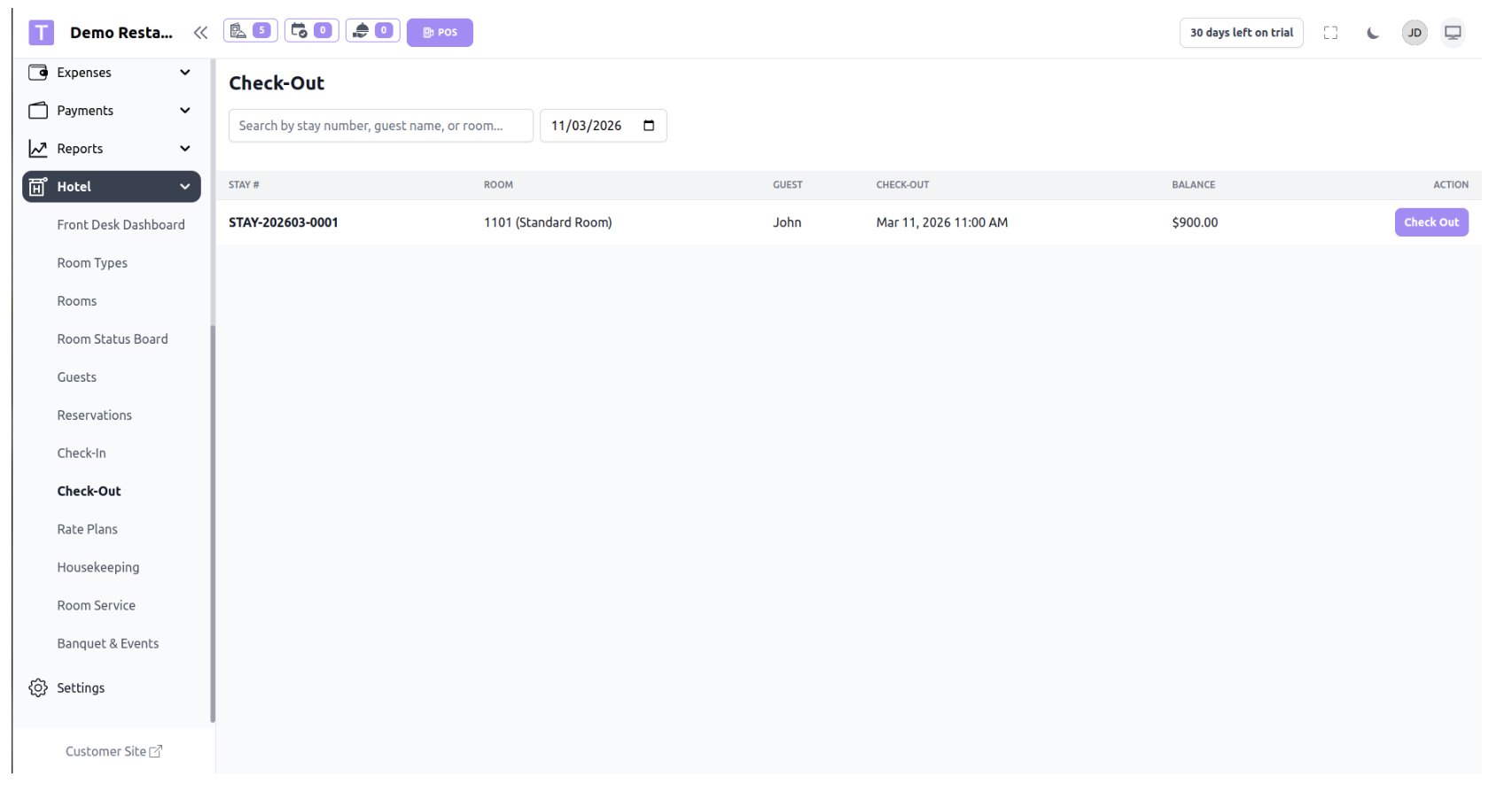
Rate Plans
The Rate Plan feature allows hotel administrators to define different pricing strategies for rooms. A rate plan determines how much a guest will be charged for a room based on the room type and pricing rules.
Rate plans help hotels manage flexible pricing such as seasonal pricing, promotional rates, or special offers.
Purpose of Rate Plans
Rate plans allow the hotel to:
- Set different prices for room types
- Manage pricing strategies
- Offer special or discounted rates
- Apply different rates for different booking conditions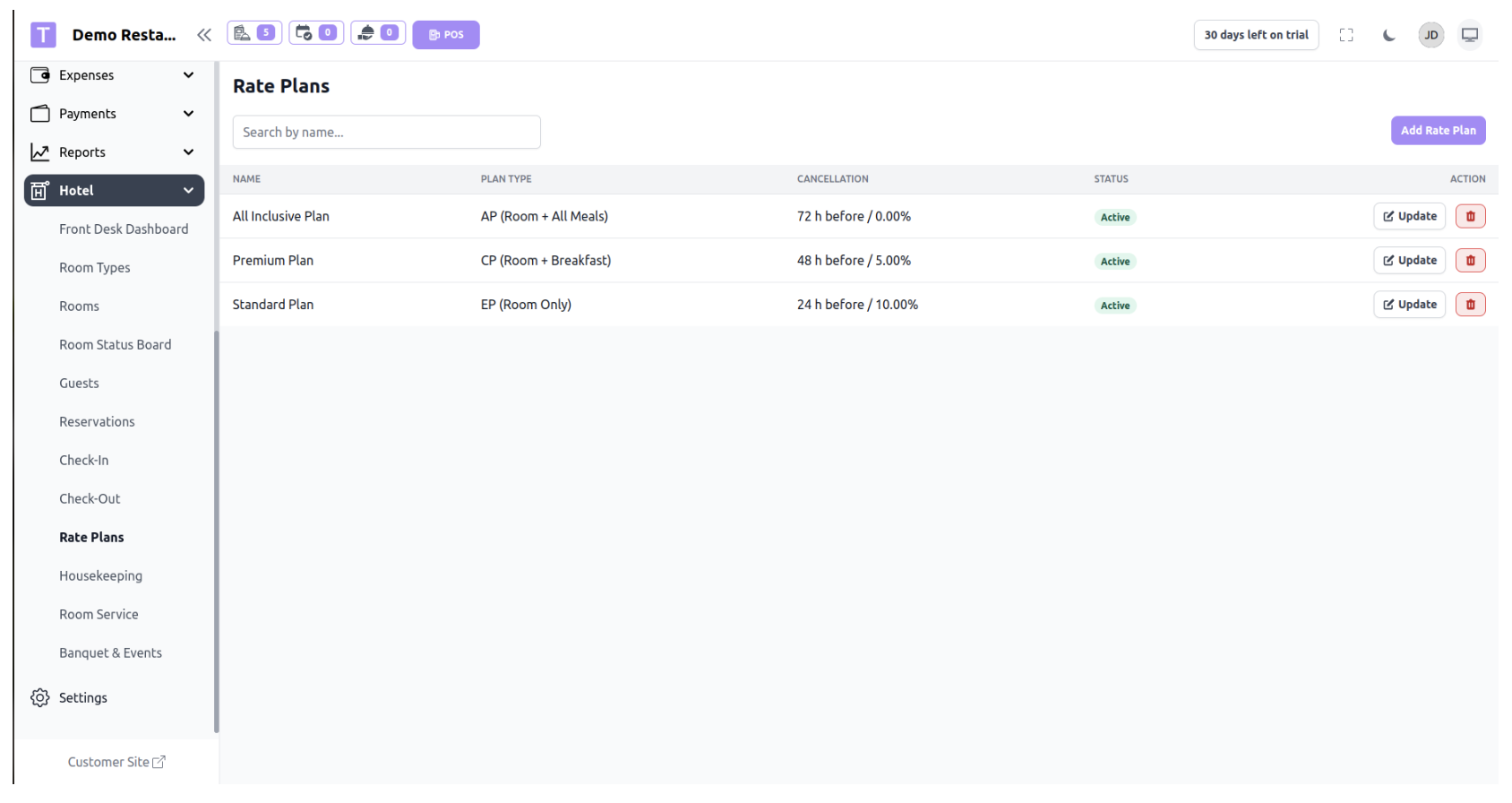
Housekeeping Tasks
The Housekeeping Task feature helps manage room cleaning and maintenance after a guest checks out.
When a guest completes Check-Out, the system automatically changes the room status to Vacant Dirty and creates a housekeeping task for cleaning the room.
Purpose of Housekeeping Tasks
Housekeeping tasks help hotel staff:
- Track rooms that require cleaning
- Manage housekeeping staff responsibilities
- Ensure rooms are prepared for new guests
Maintain room cleanliness and readiness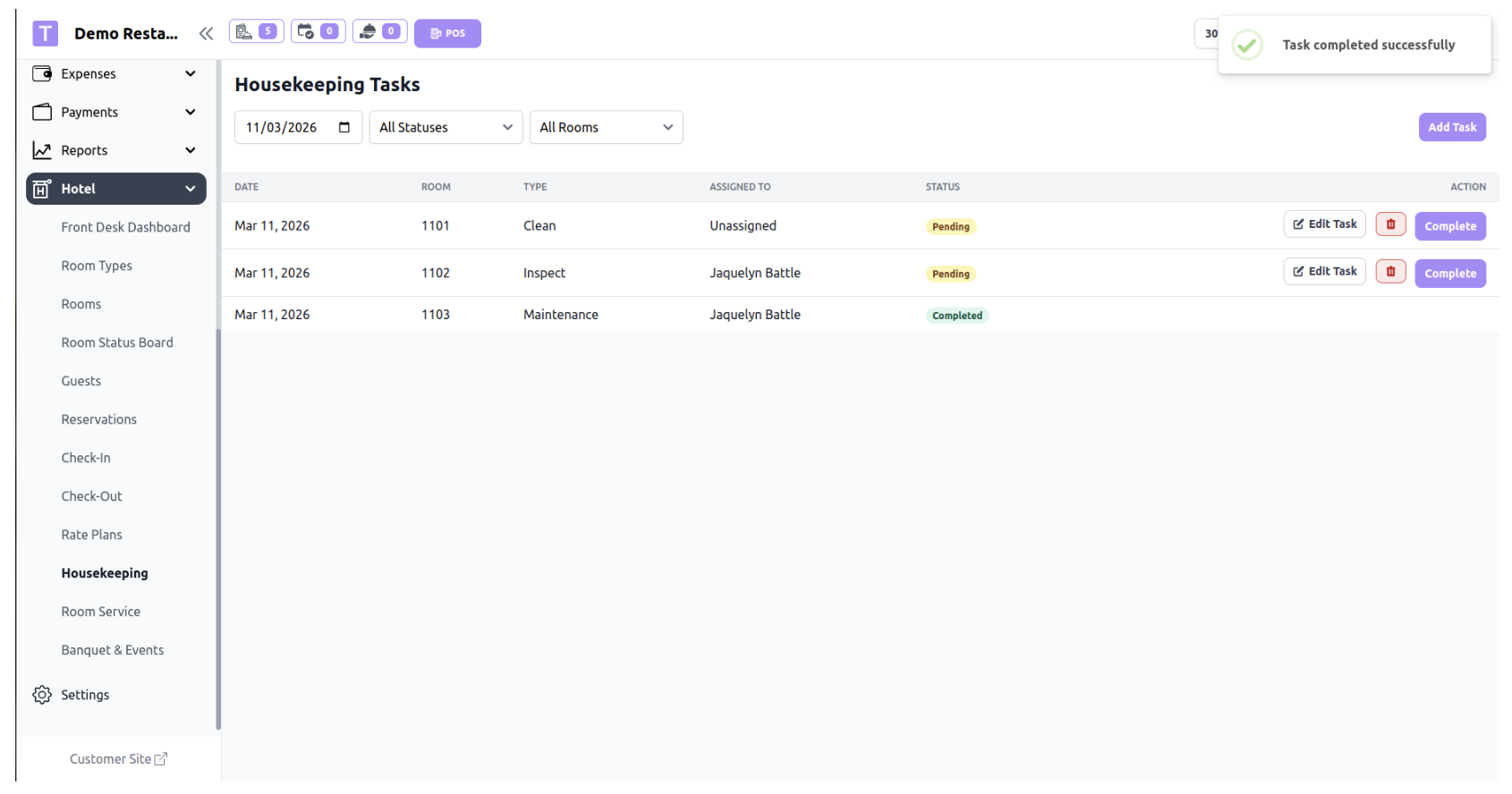
Room Service Orders (POS Integration)
The Room Service Order feature allows hotel staff to create food and beverage orders for guests staying in hotel rooms.
These orders are managed through the POS (Point of Sale) system, ensuring that room service charges can either be paid immediately or added to the guest’s final hotel bill.
Creating a Room Service Order
To create a room service order, the staff uses the Create Order via POS button available in the Room Service section.
Process
1. Staff clicks Create Order via POS.
2. The system redirects to the POS interface.
3. In the POS, staff selects Order Type → Room Service.
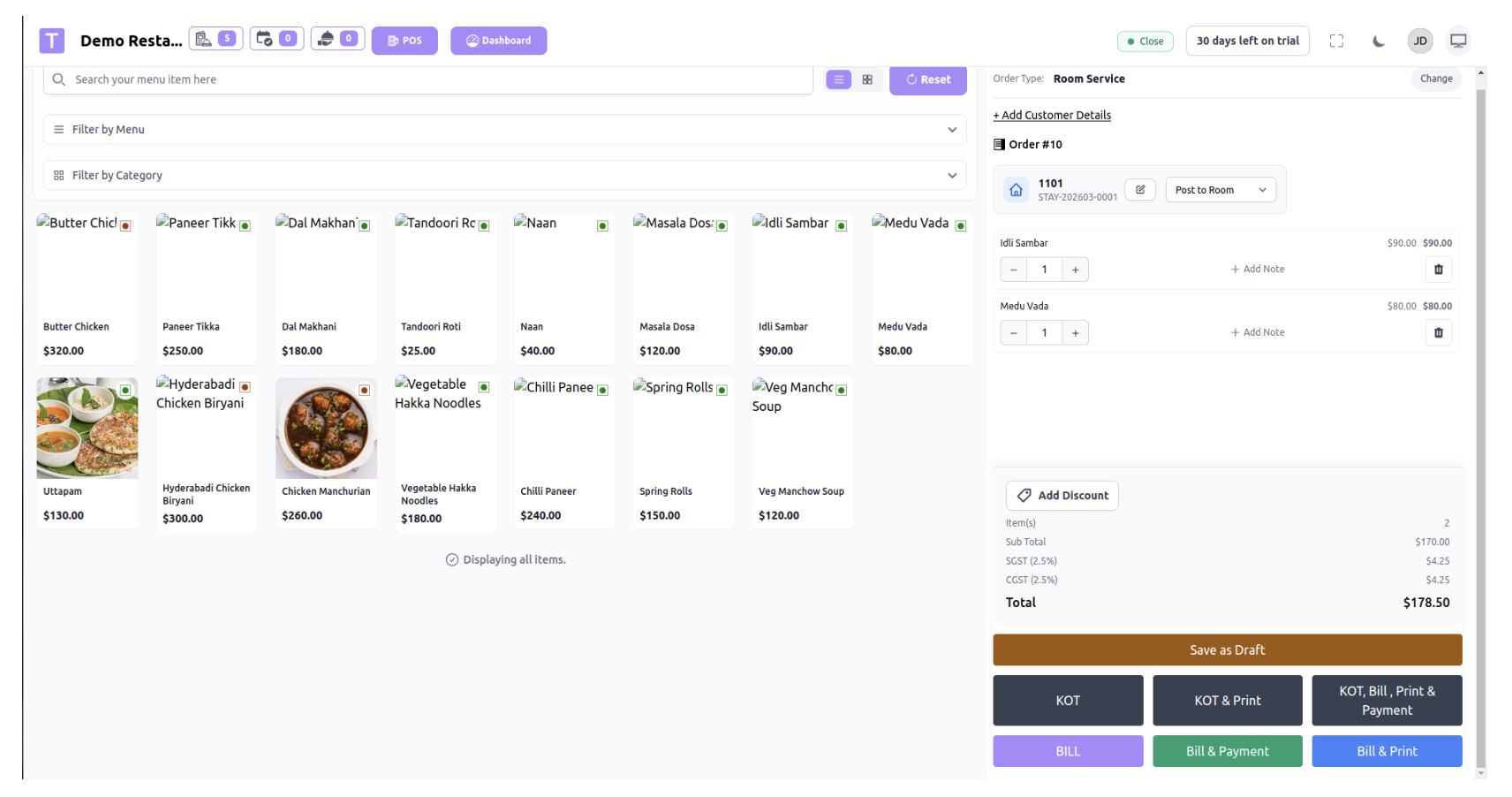
4. After selecting the Room Service order type, the system requires the
staff to select the guest room.
5. Staff then adds the required food or beverage items to the order.
6. Finally, the staff selects the payment mode.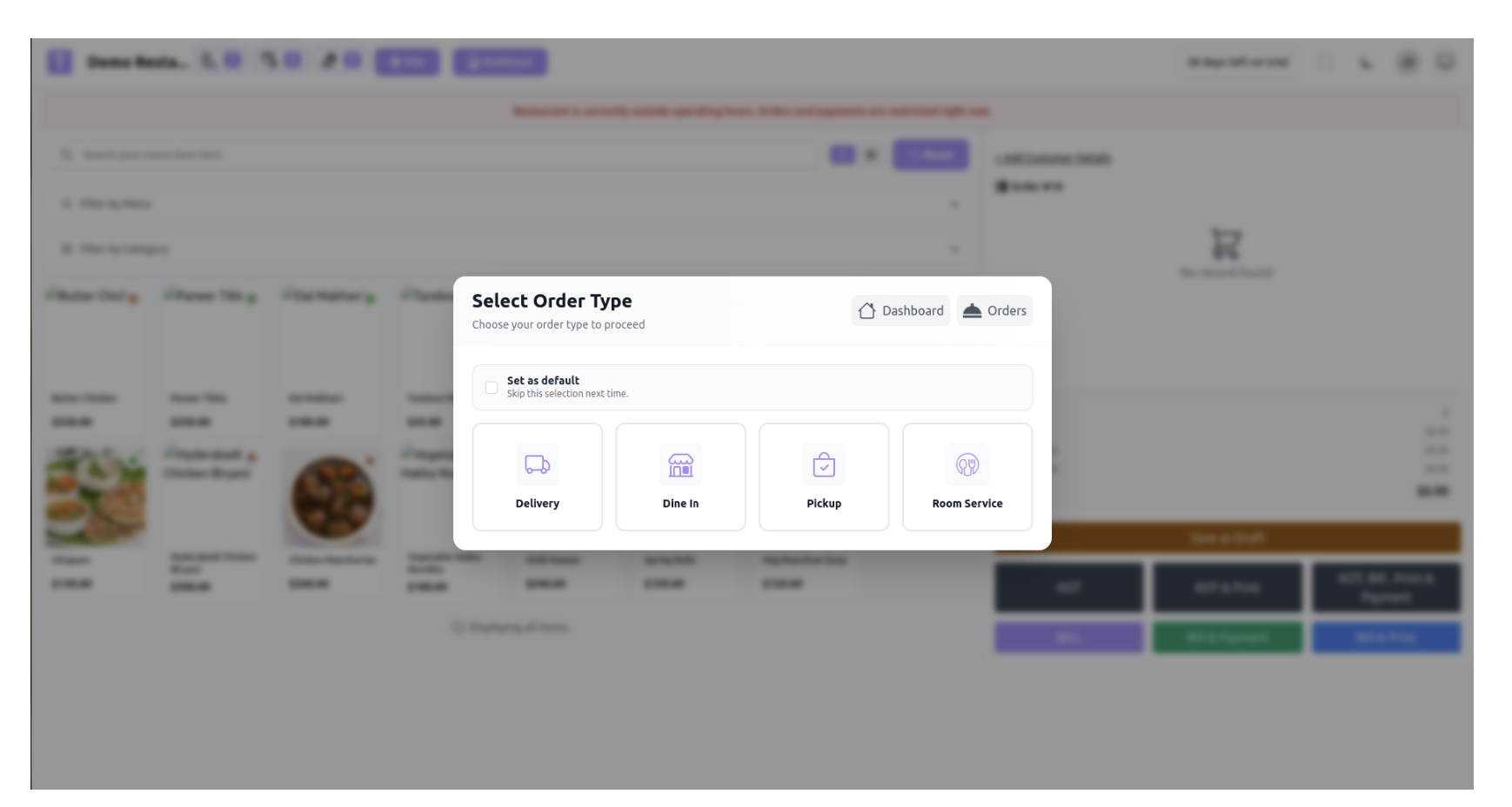
Payment Options
The system provides two payment options for room service orders:
Pay Now
If Pay Now is selected:
- The guest pays immediately.
- Payment is completed at the time of order.
- The order is marked as Paid.
The charge is not added to the guest’s checkout bill.
Post to Room
If Post to Room is selected:
- The order amount is not paid immediately.
- The order charge is posted to the guest’s room account.
- The amount is automatically added to the guest's final bill.
When the guest performs Check-Out, the room service charges will appear in the final checkout invoice.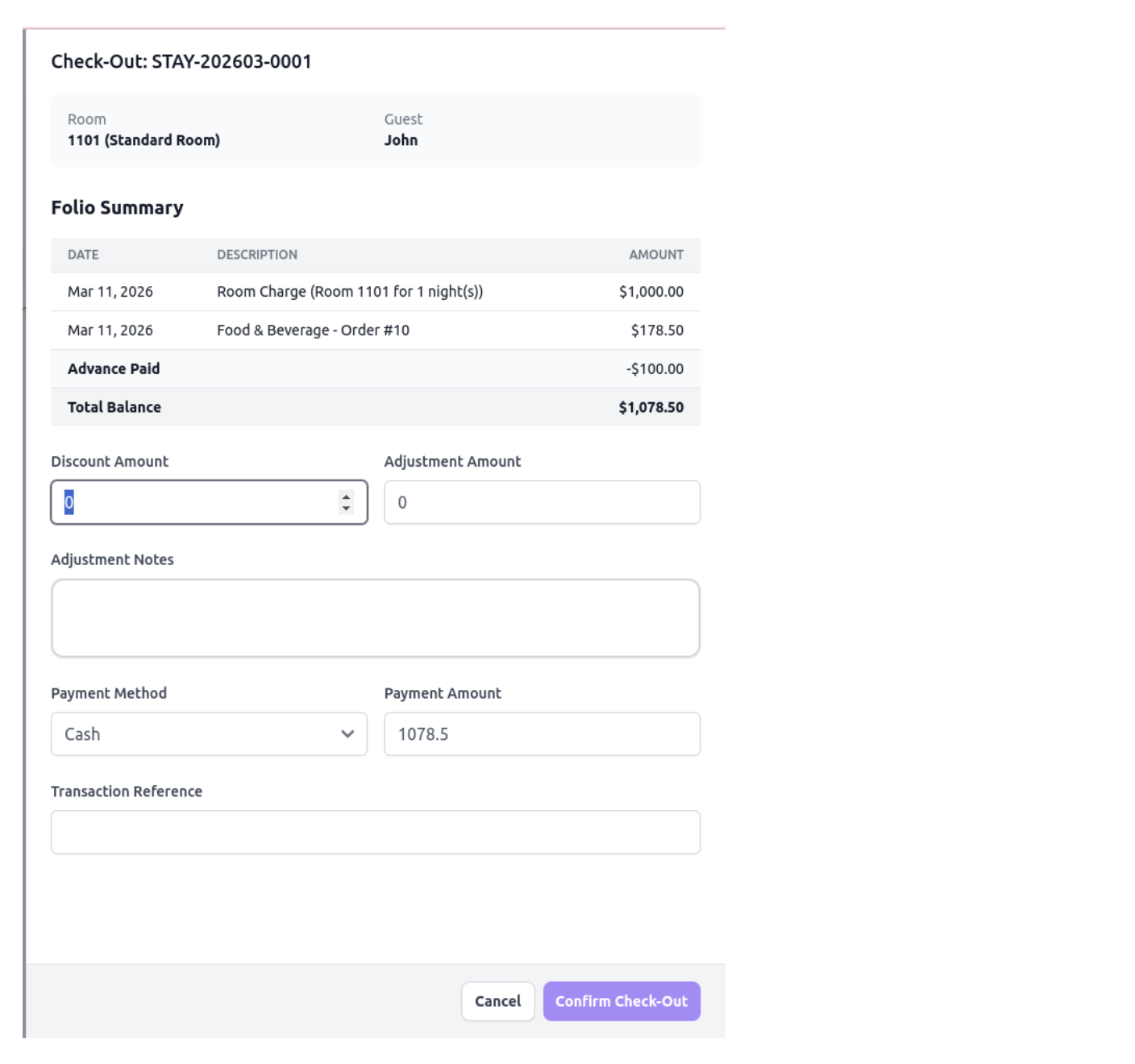
Venue
The Venue feature allows the hotel to manage different spaces or halls where events, meetings, or functions can be organized. Venues can include banquet halls, conference rooms, party halls, or outdoor spaces.
Purpose of Venue Management
Venue management helps the hotel to:
- Organize event locations
- Manage venue capacity
- Avoid double booking of halls
- Track venue availability for events
Event Management
The Event feature allows the hotel to manage bookings for functions, meetings, parties, weddings, or conferences.
Each event is linked to a venue and scheduled for a specific date and time.
Purpose of Event Management
Event management helps the hotel to:
- Schedule events
- Manage venue bookings
- Track event details
- Avoid scheduling conflicts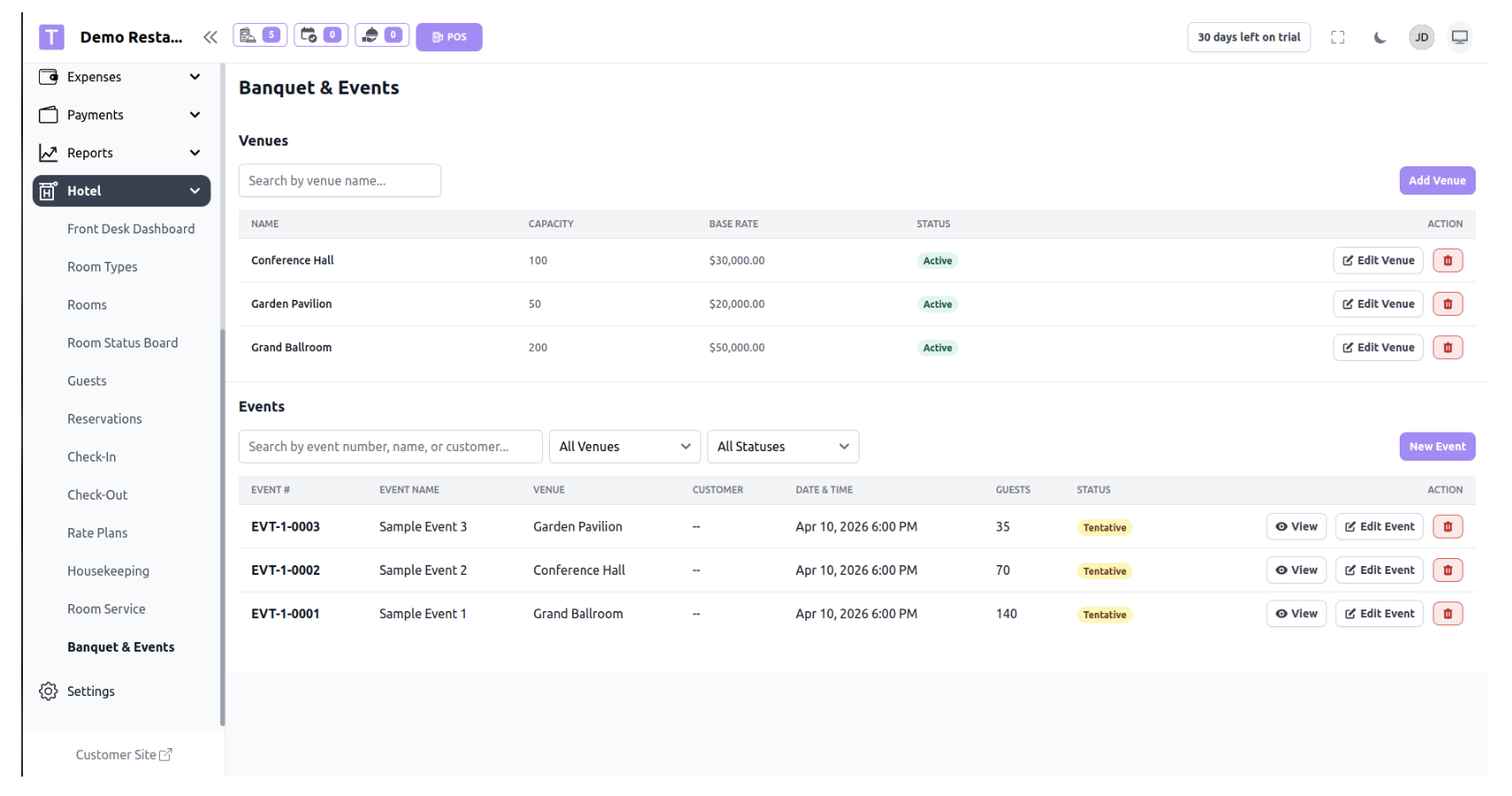
Was this article helpful?
That’s Great!
Thank you for your feedback
Sorry! We couldn't be helpful
Thank you for your feedback
Feedback sent
We appreciate your effort and will try to fix the article