Overview
The Menu-to-Table Assignment Module allows administrators to control which menu items are visible for specific tables.
Using this feature, each menu item can be assigned to:
A single table
Multiple tables
Or all tables (if configured)
⚠ Important:
This feature works only when customers access the ordering system through the table-specific QR code.
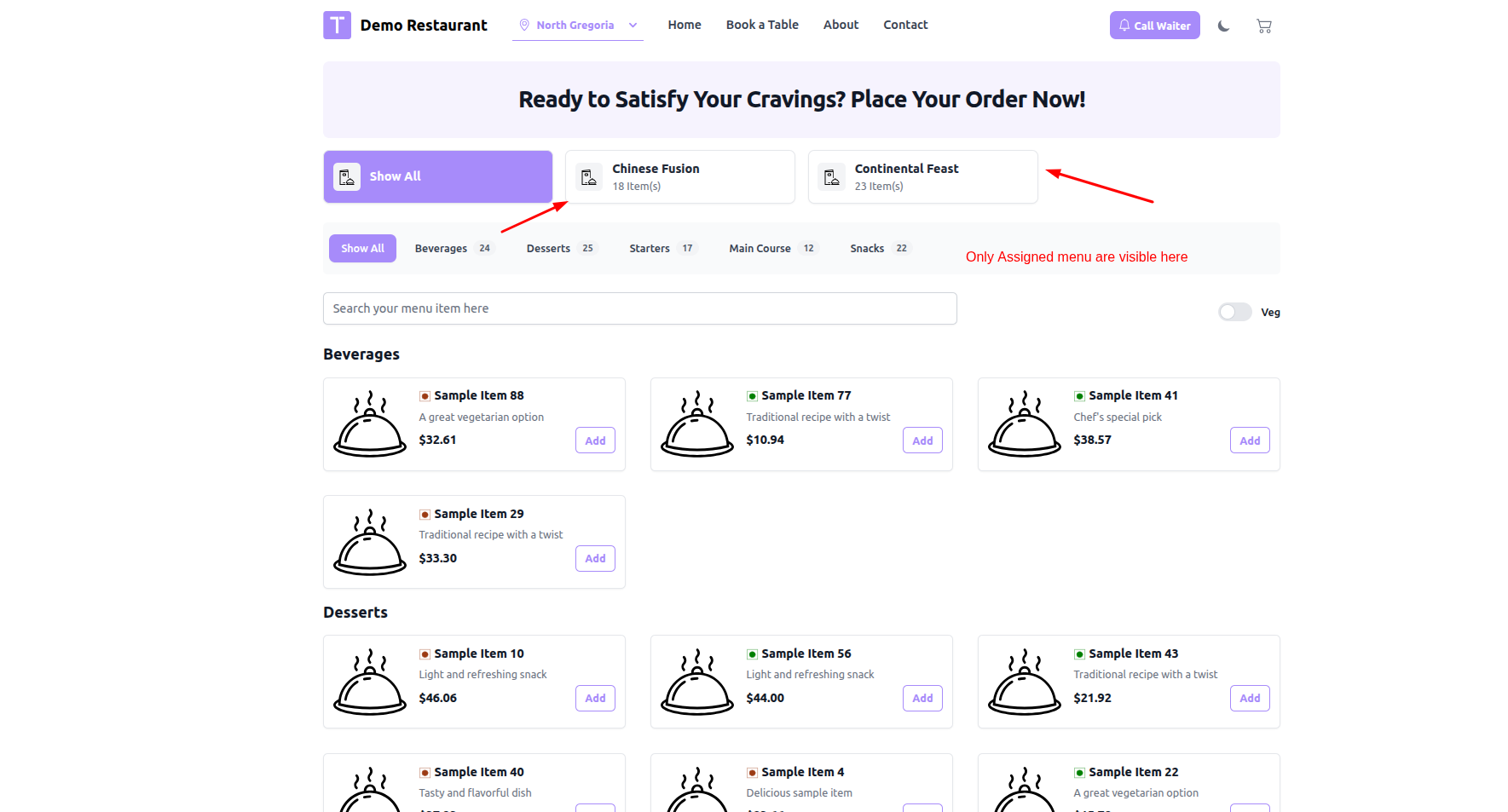
When a customer scans a table QR code, the system identifies the table automatically and displays only the menu items assigned to that table.
Purpose
In many restaurants, different tables may require different menu availability due to:
Bar-only sections
VIP lounge access
Outdoor seating limitations
Breakfast/Lunch/Dinner zones
Special event tables
Kitchen availability
The Menu-to-Table Assignment provides fine-grained control over menu visibility.
QR- Based Functionality
This feature is specifically designed for QR Code Ordering Systems.
How It Works:
Each table has a unique QR code.
Customer scans the QR code.
System automatically detects:
Table ID
Menu is filtered based on:
Assigned menu items for that table.
Customer sees only the allowed items.
If a user accesses the system without scanning a QR code (e.g., direct URL access), this table-based filtering will not apply.
Key Features
1️ Table-Based Menu Visibility
Assign specific menu items to selected tables.
Hide menu items from specific tables.
Control item availability without deleting or disabling the item globally.
2️ Multi-Table Assignment
A menu can be assigned to multiple tables.
One table can have multiple assigned menu .
Fully flexible mapping between menus and tables.
3️ Customer-Side Dynamic Filtering
When a customer:
Selects a table
Opens the menu page
The system automatically:
Identifies the selected table.
Filters menu items assigned to that table.
Displays only allowed items.
Work Flow
Step 1: Open Menu Page
Admin navigates to the Menu Management page.
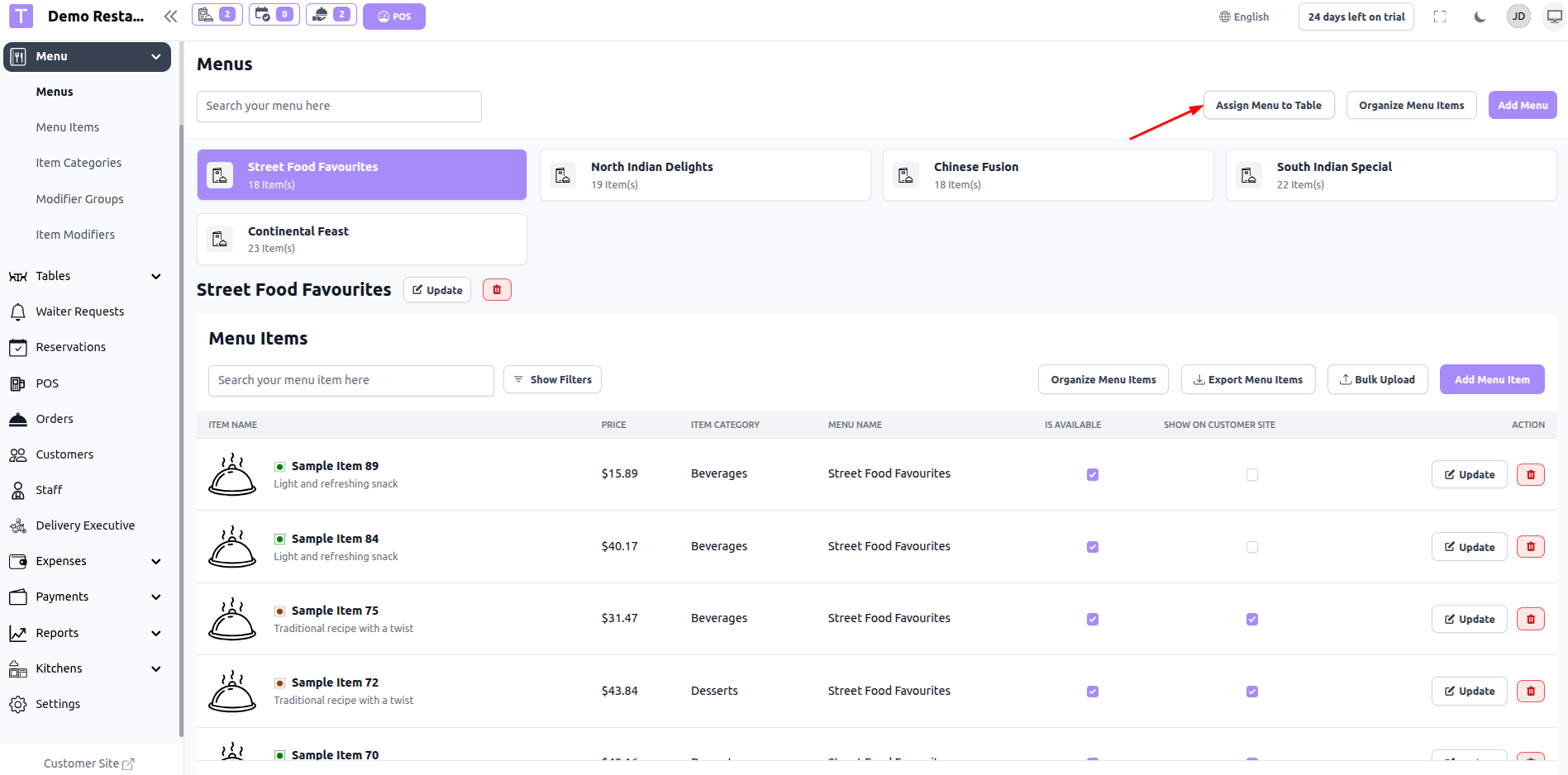
Step 2: Click "Assign Menu to Table"
A modal opens.
Step 3: Select Table
Admin selects the desired table from dropdown.
Step 4: Select Menu Items
Admin checks the menu items that should be visible for that table.
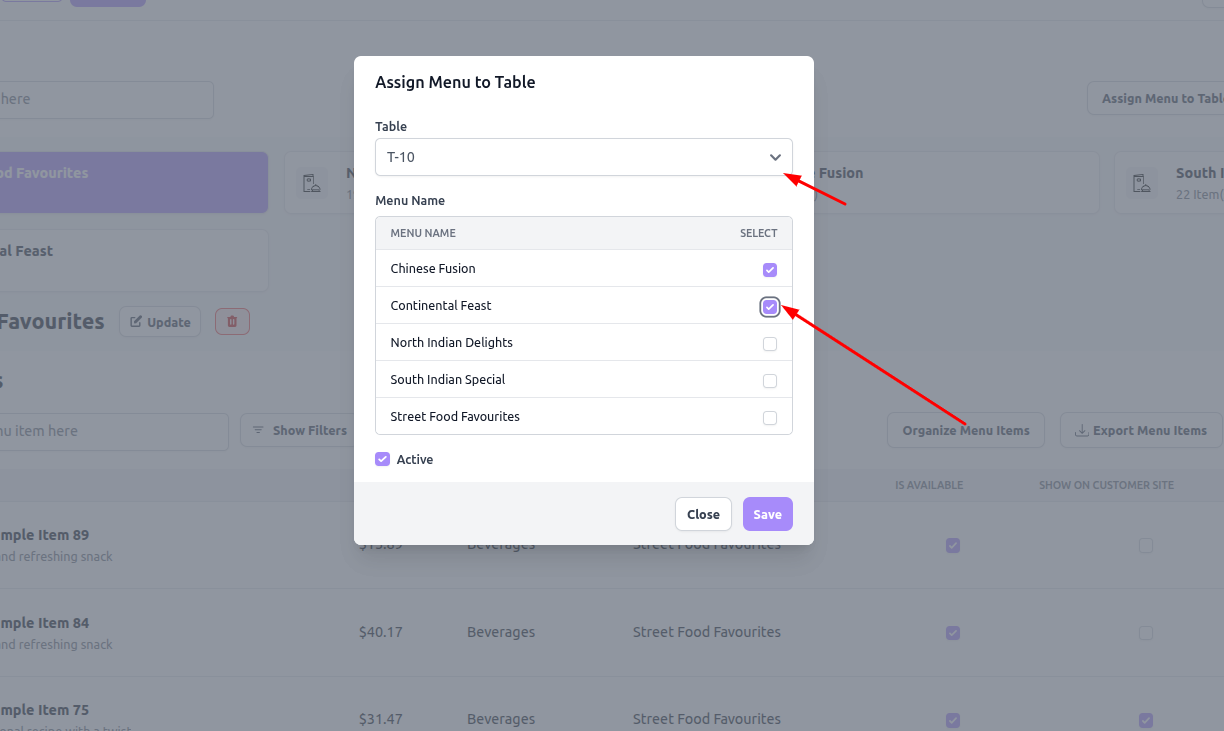
Step 5: Save Assignment
System stores mapping between:
Table ID
Menu Item IDs
Step 6: Customer Interaction (QR Flow)
Customer scans table QR code.
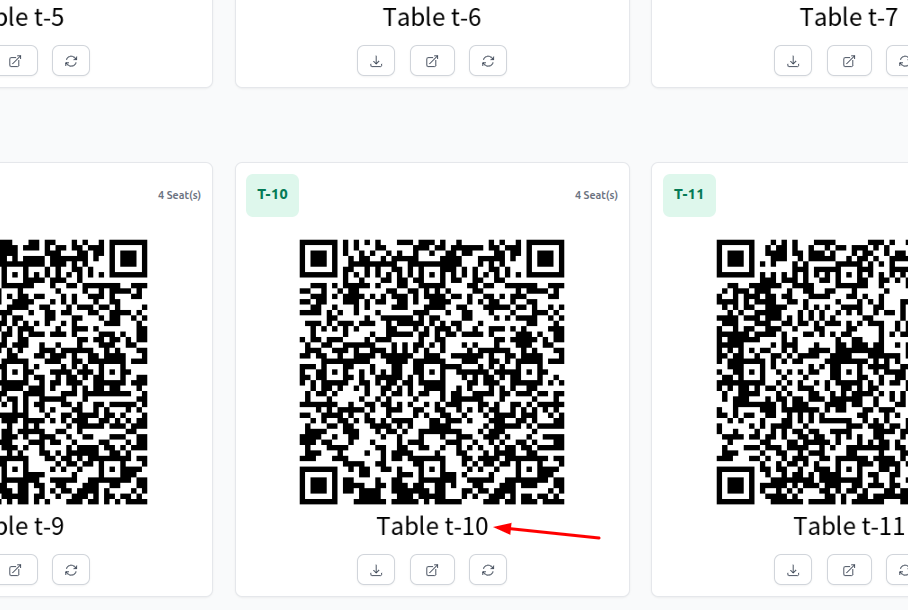
System detects table ID.
Menu is filtered dynamically.
Only assigned items are displayed.
Suitable For
QR-based ordering restaurants
Multi-section restaurants
Bar + Dining combined setups
Event-specific table restrictions
Smart restaurant systems
Was this article helpful?
That’s Great!
Thank you for your feedback
Sorry! We couldn't be helpful
Thank you for your feedback
Feedback sent
We appreciate your effort and will try to fix the article