1. Overview
Epay is a one-time payment gateway integration. It allows customers to complete a single payment for an order from the Customer Site.
⚠️ Note: Epay supports only one-time payments. Recurring or
subscription payments are not supported.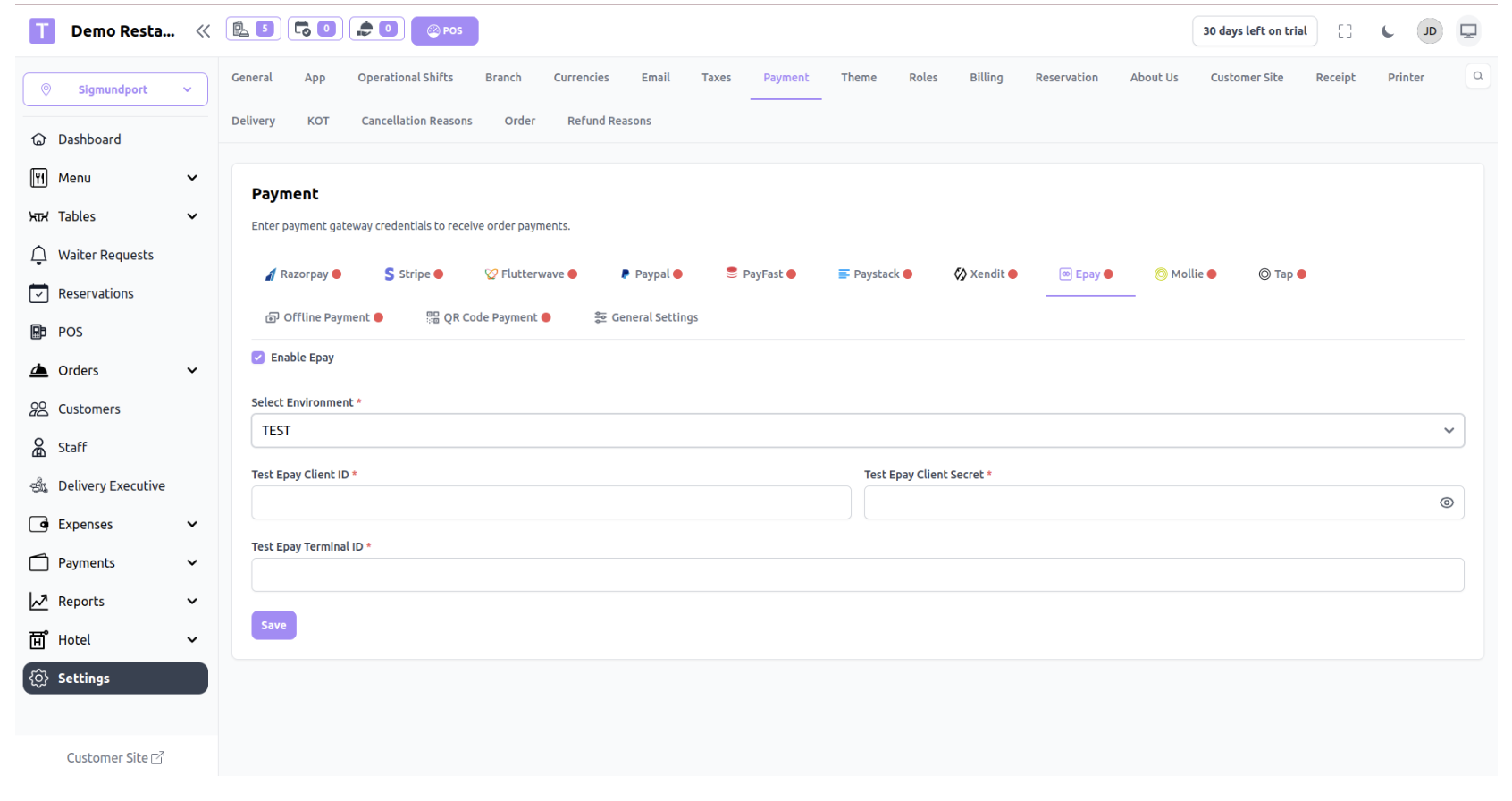
2. Configuration Steps (Admin Panel)
To configure Epay credentials:
? Navigation:Settings → Payment → Epay
Required Fields:
The following fields are mandatory:
- Client ID
- Client Secret
- Terminal ID
Environment Selection:
You must select the appropriate environment:
- Test – For sandbox/testing transactions
- Live – For real transactions
Steps to Enable:
1. Go to Settings → Payment → Epay
2. Enable the Epay toggle|
3. Select Environment (Test / Live)
4. Enter:
- Client ID
- Client Secret
- Terminal ID
5. Click Save
Once saved, Epay will be available on the customer checkout page.
3. Customer Payment Flow
When:
- Epay is enabled
- Customer places an order from the Customer Site
Then: - Customer will see Epay as a payment option at checkout.
- Customer selects Pay with Epay
- Customer is redirected to the Epay payment interface
- After payment attempt:
- Customer is redirected back to the website
4. Payment Processing Logic
Epay integration handles payments through:
1. Success Redirect
2. Cancel Redirect
5. Success Redirect Handling
When payment is successful:
- System verifies the payment using:
- Invoice ID (primary lookup)
- Payment ID
- Reference ID
- Order ID
- Session fallback (if needed)
On Successful Payment:
- Payment status is marked as Completed
- Payment date is stored
- Transaction ID is stored (if provided by Epay)
- Order is updated:
- amount_paid is increased
- Order status is set to Paid
- Payment record is created or updated
- Order events are triggered:
- New Order notification
- Order bill event (if customer exists)
- Session payment data is cleared
- Customer is redirected to Order Success Page
Duplicate Protection
If payment is already marked as completed:
- System will not process it again
- Prevents duplicate amount updates
6. Cancel / Failed Payment Handling
If payment is:
- Cancelled
- Failed
- Aborted
- 3D Secure failure
- Card declined
System Behavior:
- Payment status is marked as Failed
- Error response is stored for debugging
- Session data is cleared
- Customer sees a warning message
Special Case – Error Code 455
If error code or reason code is 455:
- Indicates 3D Secure issue or incorrect card entry
- Customer is advised to:
- Try another card
- Use another browser or device
- Contact bank if issue persists
Was this article helpful?
That’s Great!
Thank you for your feedback
Sorry! We couldn't be helpful
Thank you for your feedback
Feedback sent
We appreciate your effort and will try to fix the article