This documentation explains how to configure and use PWA (Progressive
Web App) Push Notifications in your system.
Step 1: Generate VAPID Keys (SuperAdmin)
Push notifications require VAPID (Voluntary Application Server Identification) Keys for authentication.
Path:
SuperAdmin Login → Settings → Web Push Notification Keys
Steps:
1. Login as SuperAdmin
2. Go to Settings
3. Click on Web Push Notification Keys
4. Click Generate VAPID Keys/
5. You will get:
✅ Public Key
✅ Private Key
6. Enter a valid Subject (Email) (e.g., mailto:admin@example.com)
7. Click Save✅ Now your server is ready to send push notifications.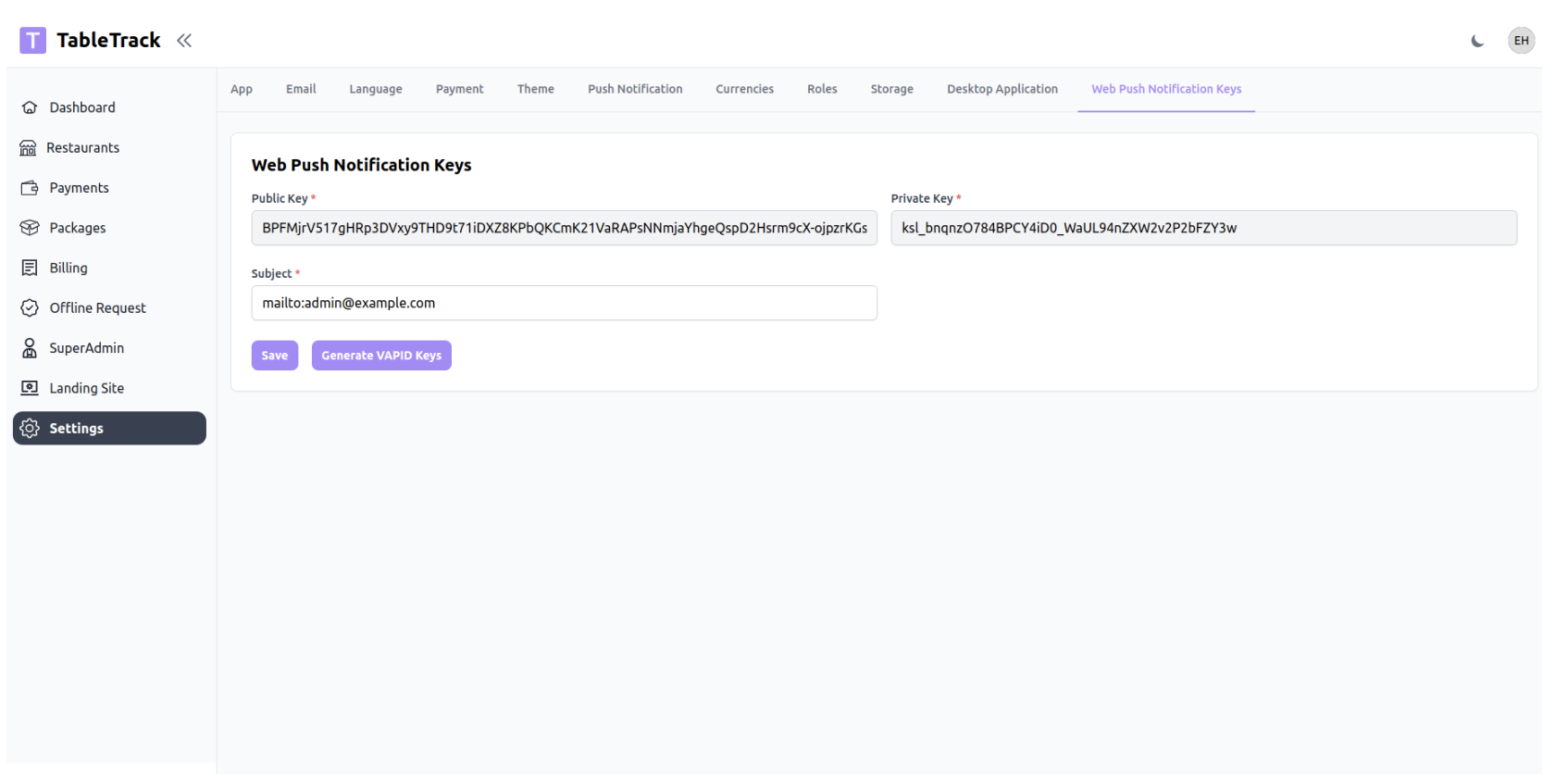
Step 2: Enable Notifications (Admin Panel)
After generating VAPID keys, enable notifications from the admin panel.
Path:
Admin Login → Dashboard
Steps:
1. Login as Admin (Restaurant Panel)
2. On Dashboard, you will see:
“Enable push notifications to receive important updates instantly.”
3. Click Enable Notifications4. Browser popup will appear
5. Click Allow
Step 3: Trigger Notification (New Order)
Once notifications are enabled:
1. Place a new order from frontend/customer side
2. When order is created:
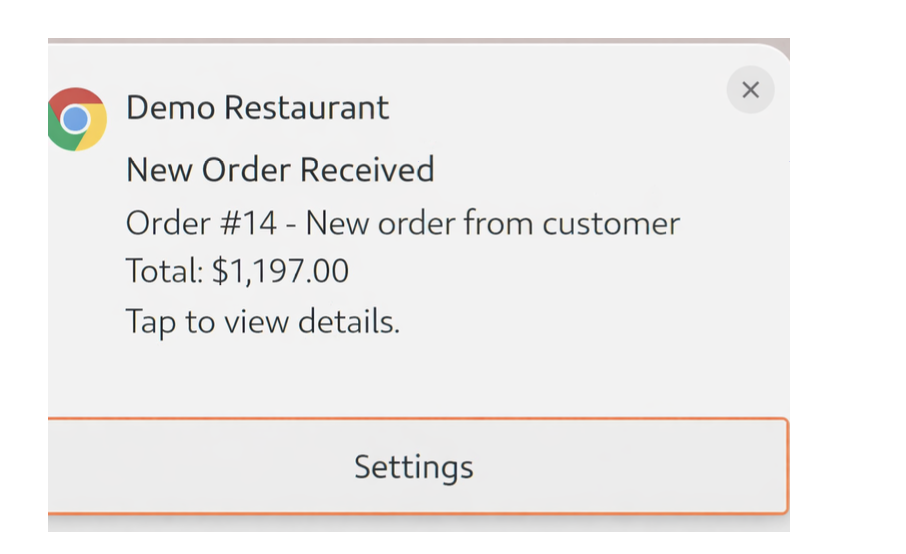
- Admin will receive a push notification
- Notification shows:
■ Restaurant Name
■ Order Number
■ Order Total
■ “Tap to view details”
Was this article helpful?
That’s Great!
Thank you for your feedback
Sorry! We couldn't be helpful
Thank you for your feedback
Feedback sent
We appreciate your effort and will try to fix the article